
ClickUp™ time tracking from your menu bar
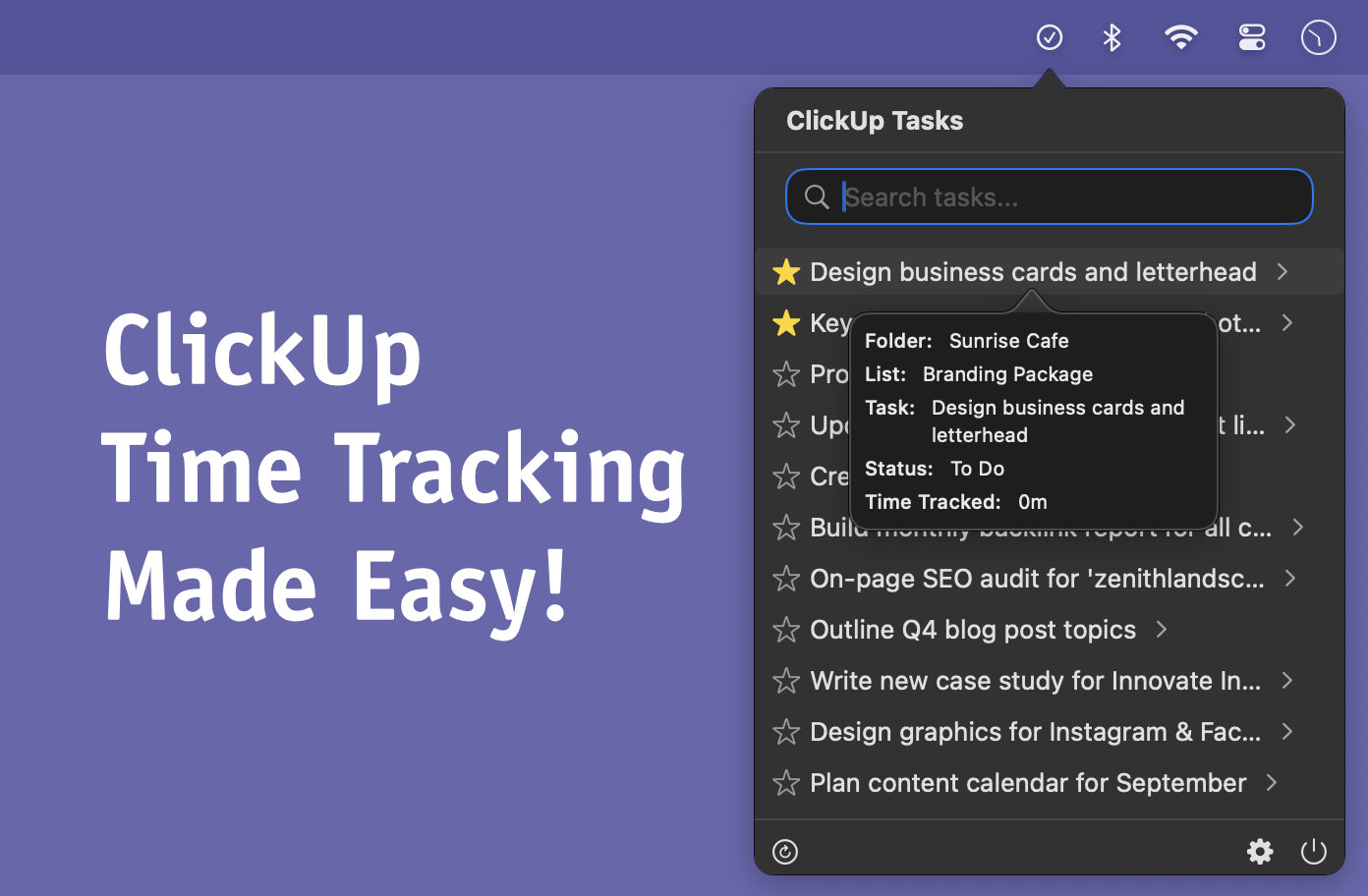
Track ClickUp tasks without opening the app. Start timers, log time, and manage favorites directly from macOS menu bar.
System Requirements: macOS 13.0+ (Ventura or later)
Smart Time Tracking for ClickUp
Start, pause, resume, and reset timers with visual indicators. Automatic logging, favorites, and manual entry make time tracking effortless.
Seamless integration and menu bar convenience
ClickTimer connects to ClickUp for real-time task sync. Access tasks from the menu bar, favorite frequently used tasks, and log time without leaving your current app.
- Automatic time logging to ClickUp
- Real-time task sync from your ClickUp workspace
- Runs quietly in the menu bar — no dock icon
Free & Pro
Everything you need to get started is free. Upgrade for power-user features.
| Feature | Free | Pro |
|---|---|---|
| Start, stop & log timers | ||
| View & search ClickUp tasks | ||
| Favorite tasks | — | |
| Hide tasks | — | |
| Log time without a running timer | — | |
| Auto-pause on sleep & shutdown | — |
Frequently Asked Questions
What is the purpose of this app?
How does time logging actually work?
ClickTimer does not use ClickUp's built-in running timer. Instead, it always logs time after the fact as a dated time block — using ClickUp's "add time" API.
This is intentional. ClickUp's native timer just keeps running — even when your computer is off or asleep. Wake up the next morning and you've "worked" 20 hours. That runaway timer problem is exactly why ClickTimer was built.
When you stop your timer in ClickTimer, the app calculates the actual elapsed time (pausing correctly for sleep, lock, or shutdown) and logs it to ClickUp as a precise time block with the correct start time and duration. No surprises.
How do I find my API key for ClickUp?
Where do I find my user ID and team ID?
In ClickUp, click on the user icon, select Settings, then Referrals, and generate a referral link by clicking the Copy shareable link button. Paste the URL into any text editor and look for the last two numbers separated by an underscore—the first is your user ID and the second is your team ID.

ClickTimer is an independent application and is not endorsed by, affiliated with, or officially connected to ClickUp in any way.